
Android TV
Step 1. Installation and setup on your phone: Happ app for iOS 15 or Android
If you have an iPhone, install and set up the Happ app following the instructions. For an Android phone see this guide.
Step 2. Installation and setup on Android TV
•Install the Happ app on your TV. Open Google Play Store on your TV, search for Happ, and tap “Download.”
•Open the Happ app on your TV. You will see a QR code — it appears on first launch. Scan the QR code using the Happ app on your smartphone. This is needed to add your subscription to the Happ app on the TV.
•There is another option — you can remotely link subscriptions in the Happ app on your TV and phone via the website
tv.happ.su. To do this, select Web Import on the TV. You will see a code — enter it. Or scan the QR code and open the link on your phone.
.png)
•Press the power button on the TV screen to turn on VPN.
Install the Paper VPN app. To do this, open Google Play Store on your TV → search for Paper VPN → tap “Install.”
If you have a Huawei TV or another device where Google Play is not available, you can download the installation file here.
There are two ways to log in to the app — using login credentials or a key.
Log in with login and password
Enter the login and password from your
personal account. Вour login is the email you used to subscribe. The easiest way is to do this using your TV remote. If this type of control is not available on your device, here’s how to do it using your smartphone.
Connect your smartphone to the TV
Install the app (
Android or
iOS) and launch it. At the top of the app screen, tap “Select TV.” Note that both your TV and your smartphone must be connected to the same Wi-Fi network.

•Select the TV or set-top box you want to connect.

•Enter the connection code shown on the TV screen into the field that appears.
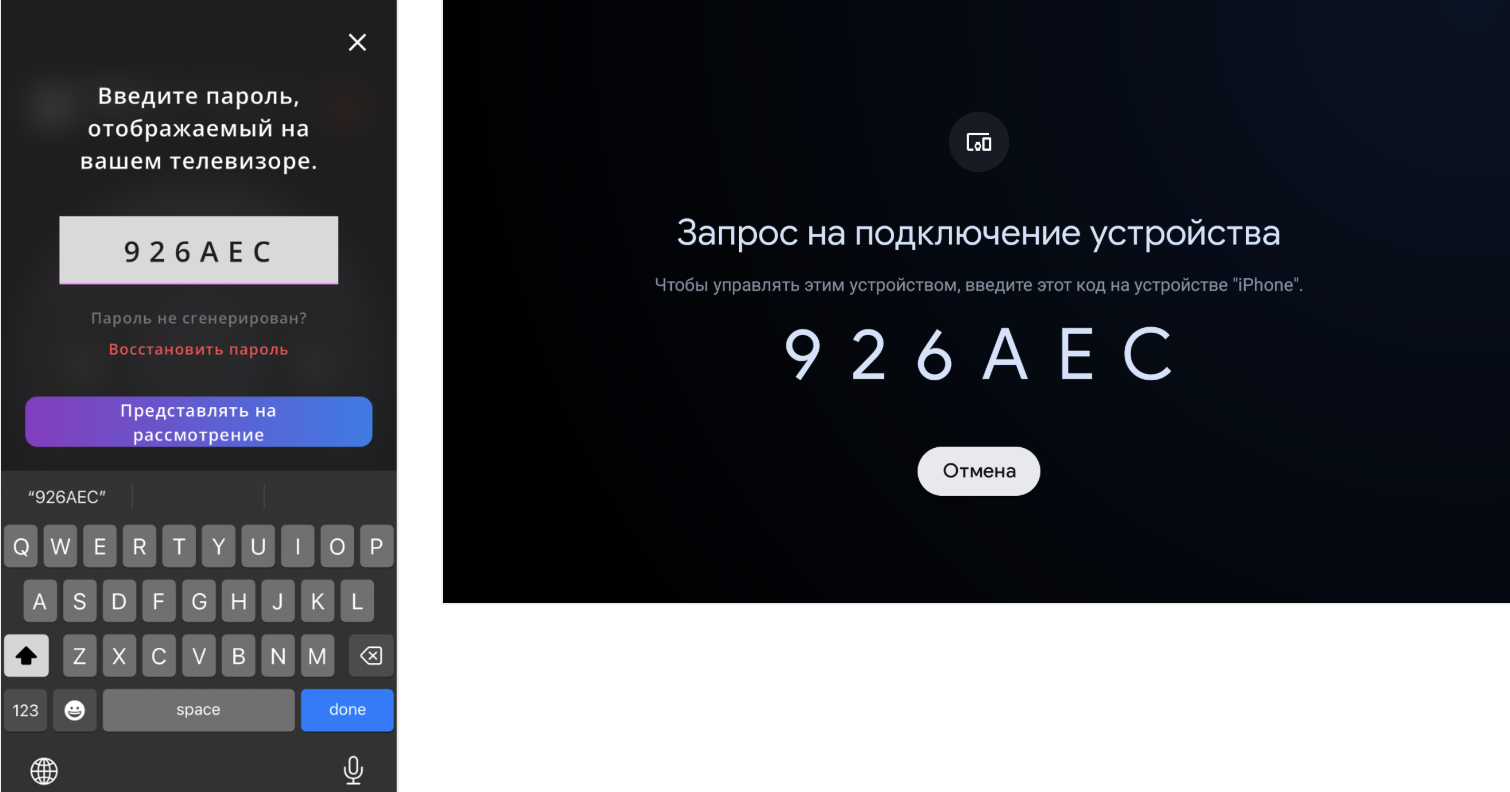
•On the TV, open the Paper VPN app, and on your smartphone, return to the Remote for Android TV app. Navigate between buttons in the Paper VPN app using the Remote for Android TV emulator on your smartphone.
•Press the “+” button in the top-right corner of the screen. Usually, you need to press the Right arrow to highlight it.
•Tap the key input field. Usually, you need to press the Down button to highlight it.
•In the Remote for Android TV app on your smartphone, an input field will open automatically. Everything you type in this field is automatically sent to the Android TV.
•Enter your login and password.
•If you forgot your password, set it or request a new one
via the link. We recommend doing this from a computer or phone, as it’s more convenient. If you forgot the email used for the subscription,
contact support. .png)